Det är svårt att få fram en detaljerad manual, eftersom samtliga internetleverantörer som köper in routrar använder olika konfigurationer, vilket innebär att något som en leverantör har, saknar en annan.
Jag kan rekommendera dom guiderna vi har för NR5103e, som besvarar som vanligaste frågorna, den kan du hitta här.
Nedan har du guider ifrån det interna materialet vi har när vi ger support. För att göra samtliga av dessa konfigurationer så behöver du åtkomst till till routerns gränssnitt, det finns en guide på hur du kommer dit i länken jag angav ovan.
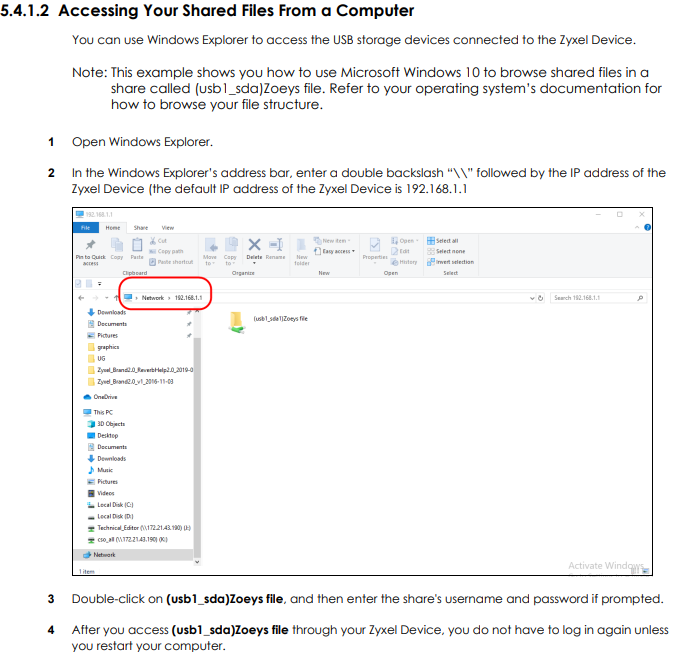
USB-disk
1 Before enabling file sharing in the Zyxel Device, please set up your shared folders beforehand in your USB device.
2 Connect your USB device to the USB port of the Zyxel Device.
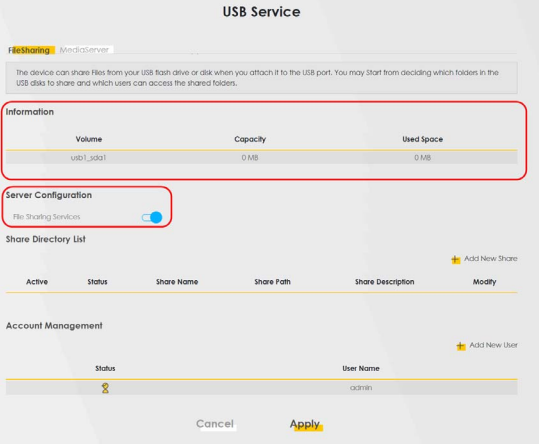
3 Go to the Network Setting > USB Service > File Sharing screen. Enable File Sharing Services and click Apply to activate the
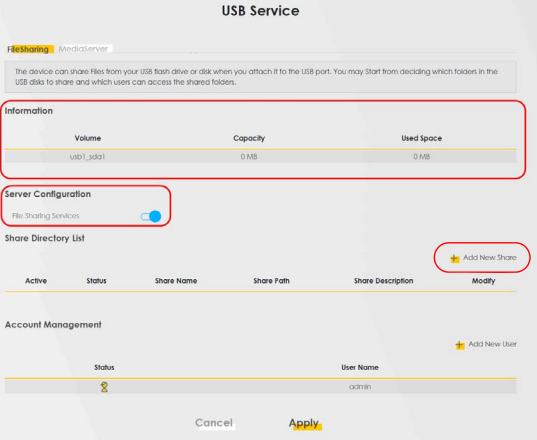
4 Click Add New Share to add a new share.
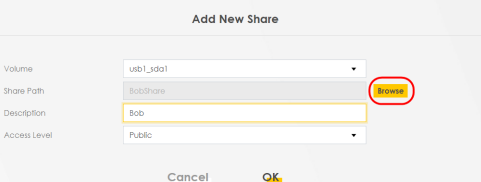
5 The Add New Share screen appears.
5a Select your USB device from the Volume drop-down list box.
5b Enter a Description name for the added share to identify the device.
5c Click Browse and the Browse Directory screen appears.
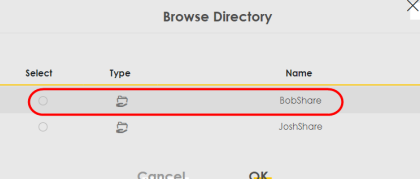
5d On the Browse Directory screen, select the folder that you want to add as a share. In this example, select BobShare and then click OK
5e In Access Level, select Public to let the share to be accessed by all users connected to the Zyxel Device. Otherwise, select Security to let the share to be accessed by specific users to access only. Click OK to save the settings.
SMS
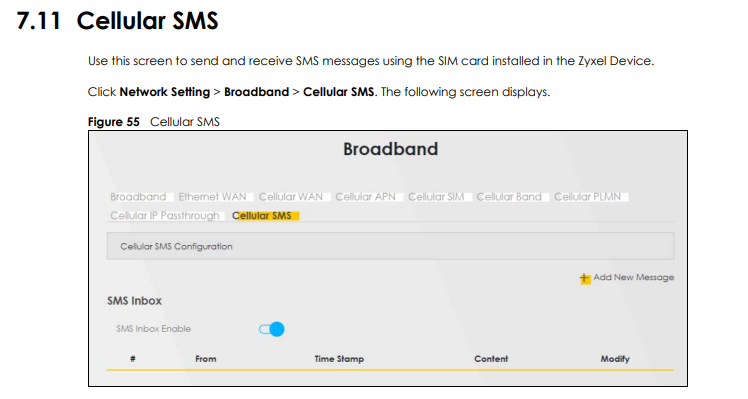
Lampan som visar SMS visar om ditt Bredband har tagit emot ett SMS. Bredbandet är i grunden fortfarande ett mobilabonnemang som kan ta emot SMS. Om du är nyfiken på att läsa dessa (om du har fått några) så kan du hitta dom här:
Jag jobbar på Tre. Mina åsikter och kommentarer är mina egna och representerar inte Tre som bolag.
Det är svårt att få fram en detaljerad manual, eftersom samtliga internetleverantörer som köper in routrar använder olika konfigurationer, vilket innebär att något som en leverantör har, saknar en annan.
Jag kan rekommendera dom guiderna vi har för NR5103e, som besvarar som vanligaste frågorna, den kan du hitta här.
Nedan har du guider ifrån det interna materialet vi har när vi ger support. För att göra samtliga av dessa konfigurationer så behöver du åtkomst till till routerns gränssnitt, det finns en guide på hur du kommer dit i länken jag angav ovan.
USB-disk
1 Before enabling file sharing in the Zyxel Device, please set up your shared folders beforehand in your USB device.
2 Connect your USB device to the USB port of the Zyxel Device.
3 Go to the Network Setting > USB Service > File Sharing screen. Enable File Sharing Services and click Apply to activate the
4 Click Add New Share to add a new share.
5 The Add New Share screen appears.
5a Select your USB device from the Volume drop-down list box.
5b Enter a Description name for the added share to identify the device.
5c Click Browse and the Browse Directory screen appears.
5d On the Browse Directory screen, select the folder that you want to add as a share. In this example, select BobShare and then click OK
5e In Access Level, select Public to let the share to be accessed by all users connected to the Zyxel Device. Otherwise, select Security to let the share to be accessed by specific users to access only. Click OK to save the settings.
SMS
Lampan som visar SMS visar om ditt Bredband har tagit emot ett SMS. Bredbandet är i grunden fortfarande ett mobilabonnemang som kan ta emot SMS. Om du är nyfiken på att läsa dessa (om du har fått några) så kan du hitta dom här:
Translate
Jag jobbar på Tre. Mina åsikter och kommentarer är mina egna och representerar inte Tre som bolag.
Jag är inte säker , men tror nog du ska kunna se & läsa sms genom att vara inloggad på zyxel air appen . Utöver webbgränsnittet där inställningar finns för det också . I mitt fall , annat märke iofs men huawei b818 går det iaf att se i deras app.
Försöker få detta att funka hos mig och kommer så långt som till “USB-services”-fönstret. Men väl där dyker inte “Share directory list” och “Add new share” upp. Vad kan jag göra?
J
Translate
Behöver du hjälp?
Har du inte hittat svar på din fråga, så kan du alltid höra av dig till oss!